|
|
|
|
|
3 Step Quick Start Instructions for Download and Installation
Having a problem downloading? See the detailed instructions below.
Detailed Instructions for Downloading Smileycons:
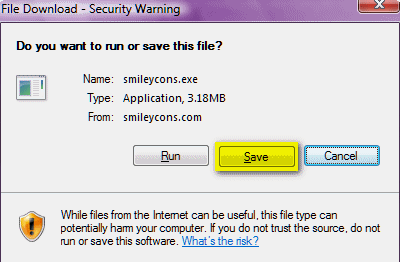
If you choose "Save" make sure you save the installation file to a location where you can find it quickly; for instance your desktop. After you've downloaded the installation file, locate it and double-click it to begin the installation. The Smileycons Installation Wizard will guide you though the installation process. The Wizard will make it a snap for you to install Smileycons on your computer.
Should You Choose Open Or Run? You will be given a choice of installation location. We suggest that you not change the default location (which is c: \ program files \ Smileycons ) unless you're an advanced user.
Updating / Upgrading (updates of current version is
free for registered users, and upgrades to newer versions is only free for Gold
Members) If you're upgrading from an older version of Smileycons, it is important that you exit Smileycons before you being downloading the newer version. To exit Smileycons, open the Smileycons program and click "FILE" then "EXIT" on its toolbar. If you receive the error message "Error Message 5", please choose "Ignore" and proceed with the installation. The installation will proceed normally. This error is caused by files from Smileycons remaining in your computer's memory even after you've closed the program. Clicking "Ignore" allows you to bypass this error message and proceed with installation normally. General Download
FAQs and Troubleshooting
What is the difference between Open/Run and Save, and why do we recommend Save? Open/Run is for those occasions when you want to install from the web. If you want to save a copy of the actual file, you will need to choose SAVE. We recommend you choose "Save" and save the file to your desktop and double-click the file you downloaded to install Smileycons on your computer. More information: Save means you are downloading the file to a folder on your hard drive. If you are getting a program that you want to keep the download file for safe keeping, such as our downloadable Smileycons program, you would want to save the EXE file to your desktop or a folder of your choosing, click to install, then save the exe (the setup file) for use later in case you format (copy or save the exe file to a CD ROM for safe keeping). . Return to help page | Register Smileycons | Go back to the top of this page
|
Smileycons is compatible with Windows XP, Windows Vista, Windows 7 Windows 8 and Windows 10 32bit and 64bit. Smileycons is copyright ©2004-2016 by Cloudeight Internet LLC (all rights reserved). Smileycons® is a registered trademark of Cloudeight Internet LLC. . |
|